
By
Gigabit Systems
October 14, 2026
•
20 min read
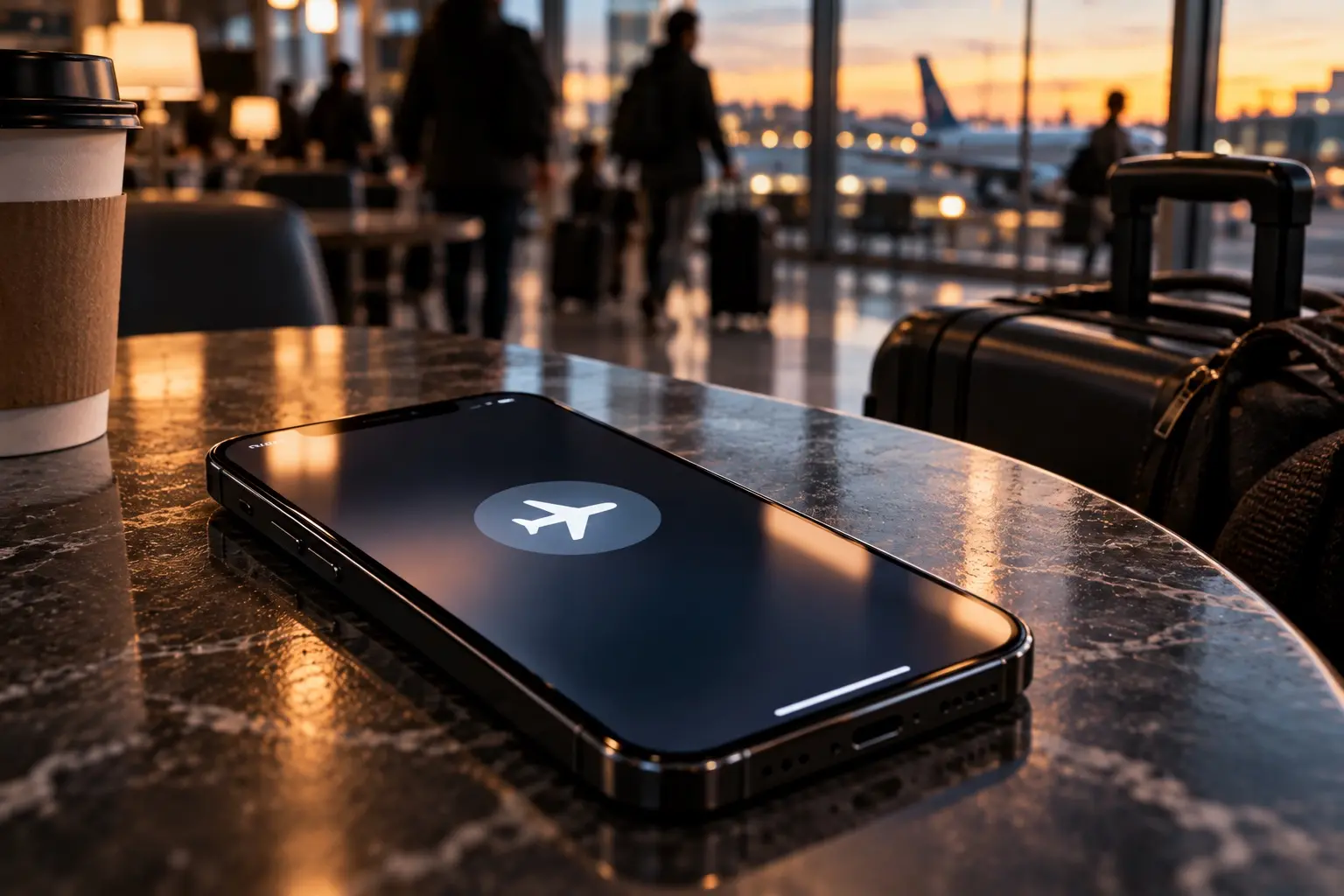
Your iPhone Gets Stolen. One Tap Could Make It Harder to Find.
A thief doesn’t need your passcode to disrupt tracking.
Your iPhone disappears.
Maybe someone snatches it from a restaurant table. Maybe it gets stolen while you’re traveling. Or perhaps you leave it somewhere and realize too late that it’s gone.
Your first instinct is to open Apple’s Find My app.
But the thief may already have tried something remarkably simple.
Swipe down.
Open Control Center.
Tap Airplane Mode.
Within seconds, your iPhone can lose its cellular connection and its normal ability to communicate over the internet.
That doesn’t necessarily make the device invisible to Apple’s Find My network. Supported iPhones can sometimes be located even when offline or powered off.
But losing connectivity can still make recovering a stolen device more difficult.
And here’s the interesting part.
Your iPhone has a built-in automation feature that can help counter this tactic.
No third-party security app.
No subscription.
No jailbreaking.
Just Apple’s Shortcuts app and a few settings that many iPhone owners have never explored.
The One-Minute iPhone Security Trick
Apple’s Shortcuts app lets you create personal automations triggered by events on your device.
One of those triggers is Airplane Mode being turned on.
You can configure your iPhone to respond by locking the screen and attempting to turn Airplane Mode back off.
How the automation works
Airplane Mode is enabled
By you or someone holding your phone
Automation locks the screen
The phone returns to its locked state
Automation turns Airplane Mode off
The phone attempts to restore normal radio connectivity
The concept is straightforward: instead of allowing Airplane Mode to remain enabled, the automation attempts to reverse the change.
There are important limitations, which we’ll cover below.
But first, here’s how to configure it.
Step-by-Step: Set Up the Airplane Mode Security Automation
Step 1 — Open Shortcuts
Open the built-in Shortcuts app on your iPhone.
Tap Automation at the bottom of the screen, then tap the + button to create a new automation.
Step 2 — Choose Airplane Mode
Select Airplane Mode from the available triggers.
Configure it for Is Turned On.
Select Run Immediately so the automation doesn’t wait for confirmation.
Tap Next.
Step 3 — Add Two Actions
Choose New Blank Automation if prompted.
Search for and add Lock Screen.
Then add Set Airplane Mode, and change the action to Off.
Make sure Lock Screen is first and Set Airplane Mode is second.
Step 4 — Save and Test
Tap Done.
Test the automation yourself by enabling Airplane Mode while your iPhone is unlocked.
Check whether it locks the screen and disables Airplane Mode as expected.
Menu names and layouts may vary by iOS version. These images are illustrative references, not verified screenshots of the exact steps.
If it works, your iPhone now has an additional response to someone attempting to disconnect it using Airplane Mode.
However, the automation should be treated as a supplemental safeguard, not a guaranteed theft-prevention mechanism.
The More Important Setting: Disable Control Center on the Lock Screen
Before creating any automation, there’s another security setting worth changing.
By default, an iPhone may allow Control Center to be opened while the screen is locked.
That means someone holding your locked phone could potentially access connectivity controls without knowing your passcode.
You can restrict that access.
Open Settings → Face ID & Passcode
Enter your passcode
Under Allow Access When Locked, turn Control Center off
This is arguably a more important first step than the automation itself.
It removes an easy way to manipulate connectivity settings from a locked phone.
However, it doesn’t prevent someone from opening Control Center while the phone is already unlocked. Nor does it stop every method of disconnecting or powering down the device.
That’s why combining preventive settings with the automation can make sense.
Three Other iPhone Security Settings Worth Checking
1. Turn On Stolen Device Protection
Go to Settings → Face ID & Passcode → Stolen Device Protection.
Enable the feature and consider selecting Always under Require Security Delay.
Apple designed Stolen Device Protection to make certain sensitive operations harder for thieves, particularly when someone has learned the device passcode.
For protected actions, it can require Face ID or Touch ID without a passcode fallback. Some critical changes also require a one-hour security delay and a second biometric authentication.
Choosing Always extends these protections to familiar locations such as home and work.
2. Enable Every Relevant Find My Feature
Go to Settings → your name → Find My → Find My iPhone.
Check that these features are enabled:
Find My iPhone
Find My network
Send Last Location
The Find My network uses nearby Apple devices to help locate missing devices through encrypted Bluetooth-based reporting.
That means an iPhone may remain findable even when it lacks a normal internet connection.
Supported models can also remain findable for a limited period after being powered off, subject to conditions such as available battery power and nearby participating devices.
3. Secure Your Apple Account
Make sure two-factor authentication is enabled for your Apple Account and use a strong, unique device passcode.
Consider a longer alphanumeric passcode if you want additional protection against someone guessing or observing a short numeric code.
Your iPhone isn’t just a phone.
It can provide access to email, authentication apps, banking, stored credentials, cloud documents and business systems.
Protecting the device and protecting the account behind it are equally important.
The Catch: This Shortcut Isn’t a Guaranteed Anti-Theft System
There are several limitations that viral demonstrations can overlook.
First, the automation is not a security boundary. Apple supports Airplane Mode as an automation trigger, including automatic execution, but that doesn’t guarantee the sequence will run in every locked-device or system state.
Second, it cannot prevent every disconnection method. A thief may power off the phone, interfere with radio signals or use other methods that don’t trigger this particular automation.
Third, it doesn’t distinguish a thief from the owner. Every time you turn on Airplane Mode, the automation may lock your phone and turn Airplane Mode off again.
That could become particularly annoying during air travel, when you deliberately want Airplane Mode enabled.
And fourth, turning Airplane Mode off doesn’t guarantee the phone can reconnect. Cellular coverage, Wi-Fi availability and other conditions still matter.
For that reason, users should test the automation under realistic conditions before depending on it.
What To Do Immediately If Your iPhone Is Stolen
If your iPhone disappears, don’t rely on the automation to solve the problem.
Use another trusted device to open the Find My app or visit iCloud Find Devices.
Mark the missing iPhone as lost as soon as possible. Lost Mode helps protect the device and can display contact information if you choose.
If you believe the phone was stolen, contact your wireless carrier and report the theft to local law enforcement. Avoid confronting someone at a location shown in Find My.
If you suspect the thief knows your passcode or has accessed your accounts, review your Apple Account security, banking access and other sensitive credentials.
For business-managed iPhones, notify your IT department or MSP immediately. Administrators may need to revoke sessions, protect corporate accounts and take action through mobile device management.
Apple provides additional guidance in its stolen iPhone recovery instructions.
Why This Matters for Business Cybersecurity
A stolen iPhone isn’t merely a lost piece of hardware.
For many employees, the device is an extension of the company’s identity and security infrastructure.
It may contain Microsoft 365 email, Teams messages, cloud applications, authentication tools, confidential attachments and access to customer information.
A criminal who gains control of an unlocked device—or obtains its passcode—may have opportunities that go far beyond the resale value of the phone.
This is why mobile device security should be part of every organization’s managed IT and cybersecurity strategy.
Businesses should consider mobile device management, strong authentication, conditional access, remote device actions and documented lost-device response procedures.
A clever personal automation can provide an extra layer of protection.
But enterprise security should not depend on employees configuring a shortcut correctly.
The Best Security Tricks Are the Ones You Set Up Before You Need Them
Most people don’t think about iPhone theft until their device is already missing.
By then, it’s too late to enable Stolen Device Protection, configure Find My or create an automation.
The encouraging part is that several meaningful safeguards are already built into iOS.
Disabling Control Center access while locked takes seconds.
Enabling Stolen Device Protection adds meaningful barriers against account takeover.
Find My can improve the chances of locating a missing phone.
And the Airplane Mode automation may provide another obstacle for someone attempting to disconnect the device.
None of these protections is foolproof.
Together, however, they can make a stolen iPhone harder to exploit.
A thief may only need seconds. Your preparation starts now.
70% of all cyber attacks target small businesses, I can help protect yours.
#iPhoneSecurity #Cybersecurity #Apple #DataProtection #ManagedIT
YOUR IPHONE GETS STOLEN. THE THIEF TURNS ON AIRPLANE MODE.
But there’s a clever iPhone automation that can respond by locking the screen and turning Airplane Mode back off.
No additional app. No subscription. Just Apple’s built-in Shortcuts.
Even better, there’s a setting that can prevent access to Control Center while your phone is locked.
Five minutes of preparation could make a stolen phone much harder to exploit.