
By
Gigabit Systems
August 31, 2026
•
20 min read
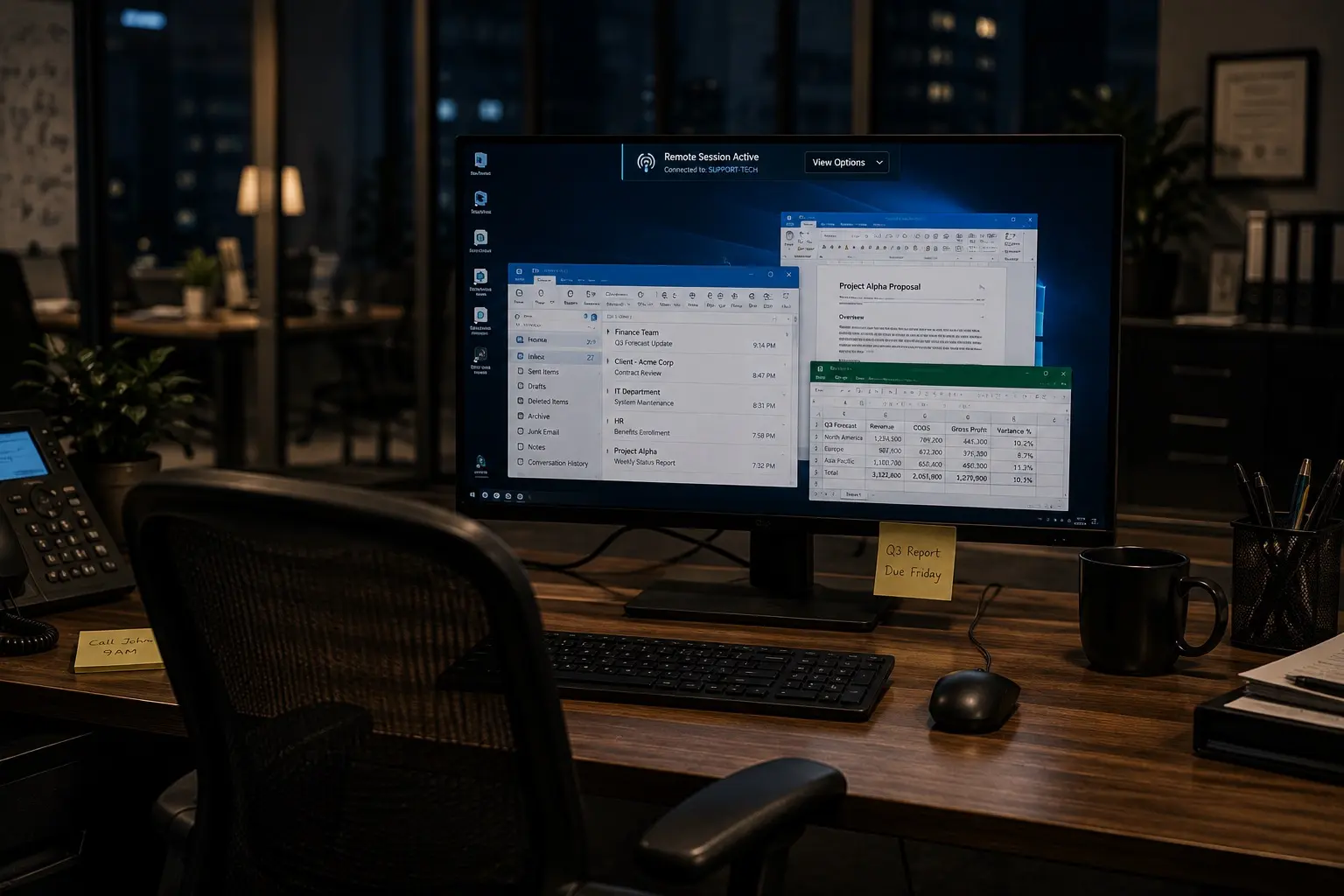
Remote Access: The Moment You Click “Allow,” They Can Become You
Remote access doesn’t let someone watch your computer. It can let them operate it.
One of the most dangerous sentences you can hear on the phone is:
“I just need to connect to your computer for a minute.”
Remote access itself isn’t malicious.
IT departments and managed IT providers use remote-access software every day to troubleshoot computers, install software, maintain servers and help employees.
But scammers use many of the exact same tools.
And that’s what makes remote-access scams so effective.
There may be no sophisticated hacking involved.
No zero-day vulnerability.
No attacker breaking through your firewall.
You install the software. You approve the connection. You open the door yourself.
Once you understand what remote access can actually give another person, you’ll understand why that approval should be treated almost like handing someone your unlocked computer.
What Does “Remote Access” Actually Mean?
Remote-access software allows another computer to interact with yours over the internet.
Depending on the software and permissions granted, the remote person may be able to see your screen, move your mouse, type on your keyboard, open applications, browse files, download or upload information, change settings, install software, access websites you’re already signed into and potentially establish persistent access.
In other words:
They may be sitting 5,000 miles away, but your computer can behave as though they’re sitting in your chair.
Common legitimate remote-support products include TeamViewer, AnyDesk, ConnectWise ScreenConnect and Microsoft’s built-in Quick Assist.
These are legitimate tools.
The danger is who you’re giving control to.
The Scam Can Start With Something Completely Innocent
You get a phone call.
“This is your bank’s fraud department.”
Or a popup:
“Your computer has been infected. Call Microsoft immediately.”
Or an email:
“There’s a problem with your account.”
Or someone claiming to be:
Your company’s IT department.
Microsoft.
Apple.
Amazon.
Your bank.
QuickBooks support.
Your internet provider.
The IRS.
A software vendor.
The attacker doesn’t necessarily need to hack your computer.
They need to convince you to give them access.
The FTC specifically warns about tech-support scammers asking victims to provide remote access to their computers, and the FBI has repeatedly warned about criminals using remote-desktop software in financial scams.
Then They Ask You to Install Something
This is the moment that should immediately raise your defenses.
They may tell you:
“Go to this website.”
“Download this support tool.”
“Read me the number on your screen.”
“Click Allow.”
The software might be completely legitimate.
That’s important.
Your antivirus might not block it because there’s nothing inherently malicious about the application.
The scammer is abusing a legitimate administrative tool.
That’s sometimes called living off trusted tools.
Instead of breaking into the house:
They convince the homeowner to hand them the key.
What Can They See?
Potentially, almost anything you can see.
Your desktop.
Your email.
Your browser.
Documents.
Photos.
Accounting software.
Customer information.
Company files.
Browser tabs.
Cloud applications.
Depending on the environment and authentication state, that could include sensitive business systems.
Remember something extremely important:
Being logged in is itself valuable.
Suppose your Microsoft 365 account has MFA.
Excellent.
But you’re already logged into Outlook.
The attacker remotely controls your computer and opens Outlook.
Your MFA hasn’t been “hacked.”
Your authenticated session may already be sitting there waiting for them.
The same concept can apply to other applications and websites.
Can They See Your Passwords?
Sometimes.
If you type a password while someone can view or control the computer, assume they may be able to observe it.
They may also try to get you to reveal credentials directly, access passwords stored insecurely, manipulate browser sessions, install additional malware or convince you to authenticate something yourself.
This is why a scammer might say:
“For security, please log into your bank.”
That sentence should terrify you.
You’re authenticating yourself.
For them.
Can They Access Your Bank Account?
If you’re logged in—or they convince you to log in—the consequences can be severe.
A common remote-access scam involves convincing the victim that a refund, fraud investigation or account correction requires access to online banking.
The scammer may manipulate what appears on the screen or attempt to persuade the victim to transfer money.
The FBI has specifically warned that criminals use remote desktop software in fraudulent schemes involving financial accounts.
Your bank account didn’t necessarily get “hacked.”
You logged into it from your legitimate computer, and someone else was controlling that computer.
That’s an important distinction.
Can They Steal Files?
Potentially, yes.
Many remote-access platforms support file transfer.
Even without an obvious file-transfer feature, an attacker with sufficient access could potentially copy information through other means or install additional software.
For businesses, that means remote access can expose:
Customer records.
Employee information.
Tax documents.
Contracts.
Financial statements.
Legal documents.
Medical information.
Intellectual property.
Passwords and credentials.
Cyber insurance information.
And potentially access to other systems.
This is where a simple scam can become a data breach.
Can They Install Something That Lets Them Come Back Later?
This is one of my biggest concerns.
There’s an enormous difference between:
One-time support access
and:
Unattended access.
Some remote-management products are intentionally designed so authorized IT personnel can reconnect later without someone sitting at the computer approving every session.
That’s extremely useful for legitimate IT management.
It’s also extremely dangerous when configured by an attacker.
A scammer may attempt to install additional remote-management software, configure unattended access, create accounts, establish persistence or deploy malware.
So closing the window does not necessarily answer the important question:
Can they get back in?
“I Disconnected Them. Am I Safe?”
Don’t assume so.
If an unknown person had remote access to your computer, treat the incident seriously.
The question isn’t only what you watched them do.
It’s:
What could they have done while they had access?
If you realize you’ve given a scammer remote access, disconnect the computer from the internet if practical and contact your organization’s IT department or MSP immediately.
For a personal computer, get trusted technical assistance and review the machine for unauthorized remote-access software or other persistence before using it for sensitive activity again.
Then, from a known-clean device, change passwords for accounts that may have been exposed, beginning with email and financial accounts, review MFA methods and active sessions, and contact your bank immediately if financial information or banking access was involved.
If it’s a business computer, don’t simply uninstall the remote-access application and declare victory.
It may now be an incident-response issue.
Businesses Have an Additional Problem
Remote-access software isn’t only a scam problem.
It’s an administrative-security problem.
Ask your MSP:
“Which remote-access applications are permitted on our computers?”
Then ask:
“Can employees install another one?”
If every employee can download arbitrary remote-control software, your carefully designed cybersecurity stack has an enormous hole.
An attacker doesn’t necessarily need to defeat your approved remote-management system.
They can convince an employee to install their own.
Your Cybersecurity Tools May See Legitimate Software
This is what makes the problem tricky.
An EDR platform may recognize TeamViewer or another tool as legitimate software.
Because it is.
The malicious part is intent.
A hammer isn’t malware.
Neither is a remote-support application.
The question is:
Who is holding it?
Organizations should therefore control which remote-management tools are permitted, restrict unauthorized applications, monitor their installation and use, remove unnecessary software, enforce least privilege and train employees to recognize unexpected support requests.
For healthcare IT, law firms and schools, this becomes especially important because a single remotely controlled endpoint may expose highly sensitive patient, client or student information.
Create One Simple Company Rule
Every employee should know this:
Never grant remote access because someone unexpectedly called, emailed or texted you.
If “Microsoft” calls:
Hang up.
If “your bank” calls:
Hang up and call the number you already trust.
If someone says they’re your MSP:
Call your MSP using the number you already have.
If your CEO supposedly needs someone connected urgently:
Verify independently.
The legitimate technician won’t be offended by verification.
Your employees don’t need to become cybersecurity experts.
They need permission to say:
“I’ll call our IT department first.”
And Never Trust Caller ID
A phone displaying your bank’s name does not prove your bank is calling.
A Microsoft logo doesn’t prove Microsoft created the popup.
An email signature doesn’t establish identity.
A person’s knowledge of your name, company or computer doesn’t establish identity either.
Attackers build credibility before asking for access.
The remote-access request is often simply the final step.
There’s a Powerful Cybersecurity Principle Here
We spend enormous amounts of money trying to keep attackers outside.
Firewalls.
MFA.
EDR.
Email security.
DNS filtering.
Zero Trust.
Conditional Access.
Encryption.
Then someone calls an employee and says:
“Click Allow.”
And suddenly the attacker may be operating from an endpoint we’ve already trusted.
That’s why cybersecurity cannot only protect machines.
It has to prepare people.
Before You Give Anyone Remote Access, Ask One Question
Did I initiate this support request?
If you called your trusted IT provider because your printer isn’t working and they ask to connect:
Normal.
If somebody unexpectedly contacts you and then asks to control your computer:
Stop.
Verify them independently.
Because once somebody remotely controls your computer, the important question is no longer:
“Can they hack me?”
It’s:
“What can I do on this computer that they can now potentially do too?”
And that’s why remote access should be treated like a physical key.
You wouldn’t let a stranger who called you unexpectedly into your office and leave them alone at your desk.
Don’t do the digital equivalent.
70% of all cyber attacks target small businesses, I can help protect yours.
#Cybersecurity #ManagedIT #RemoteAccess #ScamAwareness #DataProtection
If a stranger gets remote access to your computer, assume they can do almost anything you can. Here’s what that actually means.